
With Excel, it is not that easy to get it as a PDF the way you want it to look. Below you will find the procedure so that you receive the documents as you imagine them:
- Set the page orientation
- Specify the print area
- Specify the number of pages
- save as PDF
Set the page orientation
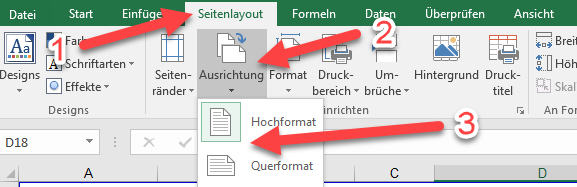
First we determine whether we want to print the file in portrait or landscape format:
- Click on “Page layout”
- Click on “Alignment”
- Select portrait or landscape
Specify the print area
Then we choose what should be printed:
- Select cells with left click and hold
- Click on “Page layout”
- Click on “Print Area”
- Click on “Set print area”
Define page width
Then we choose what should be printed:
- Click on “Page layout”
- Select the desired width in the “Width” field. Often this is “1 page” wide
- Set “Height”: If you want everything to be on one side, select “1 Page”. If you want to let Excel determine itself, choose “automatically”
Save as PDF
You can read here how to save an Office file as a PDF.


Recent Comments